
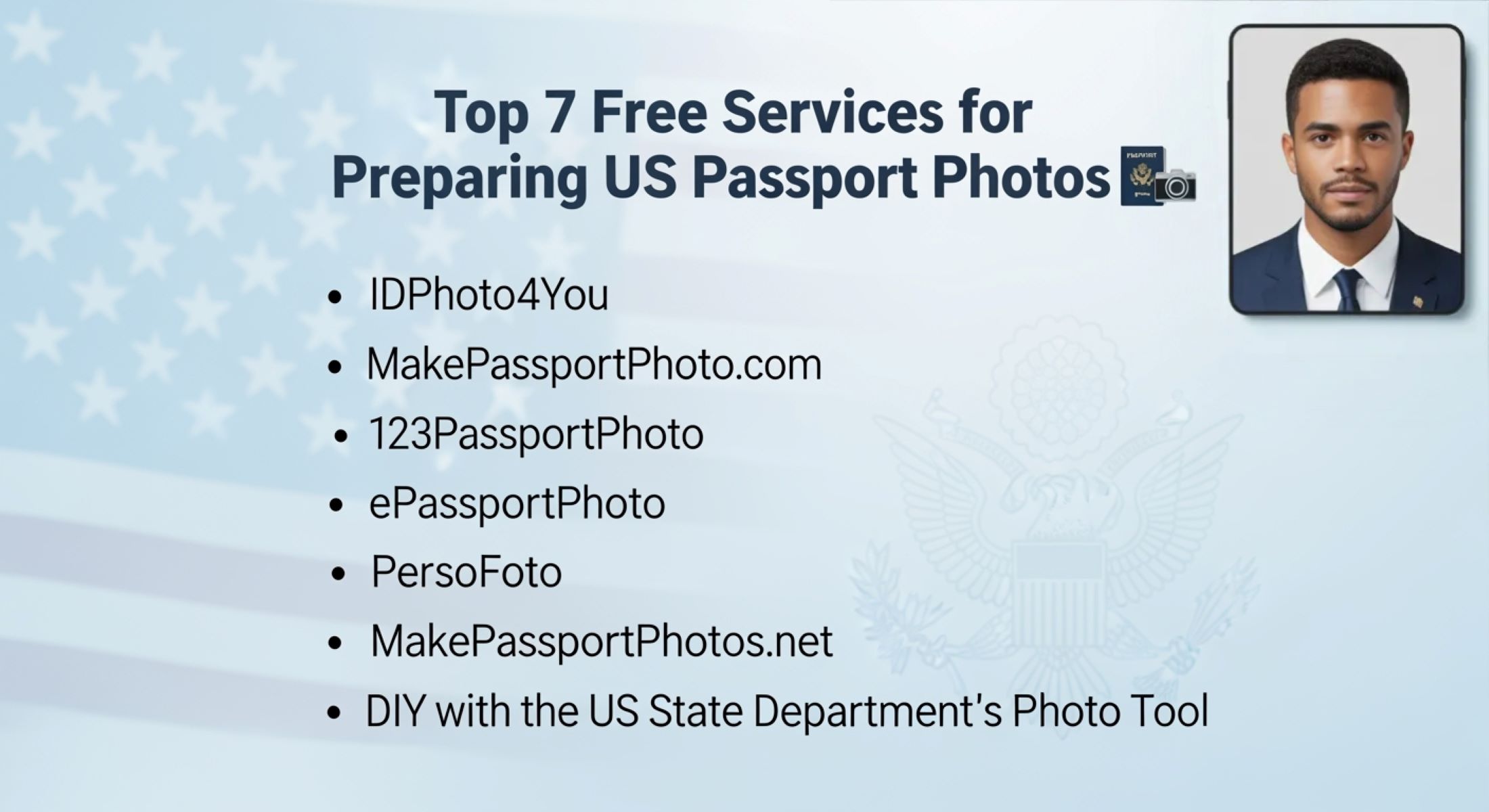
Top 7 Free Services for Preparing US Passport Photos
Applying for a US passport can already feel like a mountain of paperwork, so the last thing you want is to spend a fortune just on your digital passport photo. The good news? You don’t actually need to run to a pharmacy or a photo studio anymore. Thanks to technology, there are several free online services that let you create a digital passport photo that meets official US State Department requirements—without opening your wallet. In this guide, I’ll walk you through the top 7 free services for preparing US digital passport photos, explain what makes them useful, and even compare their features in handy tables. By the end, you’ll know exactly where to go for a quick, simple, and budget-friendly digital passport photo solution.
Understanding US Passport Photo Requirements
Before you even think about taking your digital passport photo, it’s crucial to understand that the US State Department is very strict about what counts as a valid photo. This isn’t just a casual snapshot—your picture needs to be precise in multiple ways. The size, positioning, lighting, and even facial expression all play a role in whether your application will be accepted. If your photo doesn’t meet the exact standards, you could face delays of several weeks, or even risk having your passport application rejected entirely. That’s why it’s worth investing a little time to learn the rules upfront rather than rushing through the process.
The first and most obvious requirement is the size. Your digital passport photo must be exactly 2 x 2 inches, or 51 x 51 millimeters. While that might sound simple, the State Department also specifies that your head—from the top of the hair to the bottom of the chin—should take up about 1 to 1 3/8 inches of that space. This ensures that your face is clearly visible and easily recognizable, which is essential for border control and identity verification. Cropping too closely or leaving too much empty space can both lead to rejection, so precision matters here.
Next up is head positioning and facial expression. You need to face the camera straight on, with your full head and shoulders visible. No tilting, leaning, or turning your head to the side. Your expression should be neutral, or a natural, relaxed smile is acceptable, with eyes open and looking directly at the camera. Overly dramatic expressions, squinting, or exaggerated smiles can confuse facial recognition software and will likely be rejected. It might feel awkward to “pose” naturally, but a calm, straightforward look works best for your digital passport photo.
Finally, the background and additional accessories also have strict rules. The background must be plain white or off-white, with no patterns, shadows, or objects visible. Glasses are generally not allowed unless you have a medical reason, in which case you must provide documentation. Head coverings are only permitted for religious or medical reasons, and even then, your full facial features must remain visible. Lighting should be even, avoiding shadows or reflections that could obscure your face. Getting these details right may seem tedious, but they make a huge difference in whether your digital passport photo passes inspection the first time around.
Why Use Free Passport Photo Services?
| Benefit | Description | Example | Why It Matters | Tip |
| Cost Savings | Free services eliminate the $12–$20 fee you’d normally pay for two photos at a retail store. | Instead of paying for printed photos, you can create a digital passport photo at home and print it yourself. | Saves money, especially if you’re renewing a passport for multiple family members. | Print a 4×6 sheet with six passport photos at home or a local print shop for just a few cents per photo. |
| Convenience | Take your photo at any time and from anywhere using a smartphone or camera. | Upload your picture to an online tool, adjust the crop and background, then download. | No need to schedule a trip or wait in line at a store. | Make sure to follow the proper lighting and background requirements to avoid delays. |
| Control | You can retake the photo as many times as needed until it’s perfect. | Many tools allow multiple attempts without paying extra. | Eliminates awkward rushed shots and gives you confidence your photo meets standards. | Experiment with different angles and expressions to find the most natural look. |
| Compliance | Most services automatically resize and crop your photo to meet US State Department requirements. | Tools like MakePassportPhoto.com or IDPhoto4You adjust head size and background automatically. | Reduces the risk of rejection due to technical errors. | Double-check the downloaded photo dimensions before printing. |
| Flexibility | You can choose digital or printed formats depending on your needs. | Save a digital copy for online passport applications or print multiple photos at once. | Provides options for different submission formats, whether mailing or online. | Keep a backup digital copy in case your printed version gets lost or damaged. |
Top 7 Free Services for US Passport Photos
Now let’s dive into the top free services that can make creating your digital passport photo simple, accurate, and stress-free. Each service is described in detail so you can pick the one that works best for your needs.
- IDPhoto4You – This service has been a reliable option for years. It allows you to upload your photo, automatically crop it to meet US passport photo specifications, and either download a single photo or a printable sheet with multiple copies. The tool works directly in your browser, so there’s no need to install an app. What makes it particularly convenient is its simplicity—you don’t need any prior experience, and the free features cover everything most people need for a passport photo.
- com – This is an AI-powered online service that helps you correct lighting, adjust the background, and crop your photo automatically to meet US standards. You can download your compliant digital passport photo for free, and the AI ensures that shadows, brightness, and positioning are optimized. The platform also supports other countries, making it versatile if you’re traveling abroad. It’s perfect for those who may feel unsure about taking the perfect photo themselves, as the AI essentially gives it a professional touch.
- 123PassportPhoto – Known for its simplicity and speed, this service allows you to create a digital passport photo in just three steps: upload, crop, and download. It also generates printable sheets with multiple photos, which can save time and printing costs. The platform covers over 70 countries, making it a comprehensive solution if you ever need a visa or ID photo in addition to a US passport photo. Its one-stop-shop functionality makes it especially appealing for families or frequent travelers.
- ePassportPhoto – This long-standing online tool offers both free and paid options. You can download your digital passport photo for free and print multiple copies per sheet. For those who prefer convenience, the service also provides an in-store pickup option for a small fee. It’s flexible, allowing you to stay completely free if you prefer to print at home or choose a paid delivery option if you want ready-to-use photos. Its longevity and reputation make it a trusted choice for many users.
- PersoFoto – Originally a European platform, PersoFoto fully supports US passport photo standards. You can manually adjust the crop to ensure your head size and position are perfect, and then download a free digital copy. The interface is straightforward, and it supports multiple document formats, making it a flexible option if you need different types of ID photos. The ability to test different crops and see instant results helps users avoid common mistakes that could lead to rejection.
- net – This service is designed for simplicity and speed. It allows you to crop and resize your photo for free, provides printable templates, and doesn’t require any sign-up. The platform is perfect for those who want a no-frills, straightforward solution. If you need a quick digital passport photo without any extra steps or complicated instructions, this service gets the job done efficiently.
- DIY with the US State Department’s Photo Tool – The US government itself provides a free online tool for creating a compliant digital passport photo. It features an official cropping tool specifically designed to meet State Department standards. You can check compliance instantly, ensuring that your photo will be accepted without any risk. Since it comes directly from the authority issuing the passport, it’s the most reliable option to guarantee your digital passport photo meets all official requirements.
Top 7 Free Passport Photo Services
When it comes to creating a US digital passport photo, the number of free online tools available today is impressive. Each service has unique features designed to simplify the process, whether you want a quick download, a printable sheet, or a mobile-friendly option. For example, IDPhoto4You is known for its straightforward interface that allows users to generate photos quickly. While it doesn’t automatically fix background issues, it provides free downloads, printable sheets, and a fully browser-based experience, making it ideal for people who prefer a simple, no-frills approach.
MakePassportPhoto stands out because it combines free downloads with an automatic background and lighting fix, helping ensure your photo meets US State Department standards. Its mobile-friendly design and printable sheet option make it particularly convenient for users who want to take a photo on their phone, adjust it instantly, and print it without hassle. This AI-driven service reduces the risk of errors in cropping and lighting, which are common reasons photos get rejected.
Other tools like 123PassportPhoto, ePassportPhoto, PersoFoto, and MakePassportPhotos.net offer combinations of free downloads, printable sheets, and mobile-friendly options. While some of these platforms don’t automatically fix the background, they provide manual cropping tools and templates that help ensure your digital passport photo is compliant. ePassportPhoto, for example, offers free digital downloads and the option to print multiple photos per sheet, making it a flexible choice for families or frequent travelers. PersoFoto allows for precise manual adjustments, giving users control over how the final photo looks.
Finally, the US State Department’s official tool provides a unique advantage: compliance certainty. While it doesn’t offer a printable sheet or automatic background adjustments, it is fully mobile-friendly and ensures that your digital passport photo meets all official requirements. Using this tool gives applicants confidence that their photo will be accepted without any risk of delays or rejections. Overall, these seven services collectively provide a range of options to suit different needs, whether you prioritize convenience, control, or guaranteed compliance.
Tips for Taking a Good Passport Photo at Home
| Tip | Description | Example | Why It Matters | Extra Tip |
| Lighting | Use natural daylight to illuminate your face evenly and avoid shadows. | Stand facing a window with diffused sunlight. | Proper lighting ensures facial features are clear and photo isn’t rejected. | Avoid overhead or harsh artificial lights that create shadows. |
| Background | Keep the background plain, white, or off-white. No patterns or objects should be visible. | Stand against a white wall or hang a plain sheet. | The State Department requires a neutral background for identity verification. | Smooth out wrinkles in a sheet or wall to prevent shadows. |
| Camera Position | Position the camera at eye level, approximately 4–5 feet away from you. | Use a tripod or place your phone on a stable surface. | Eye-level shots maintain correct head proportions and framing. | Ensure the camera lens is parallel to your face to avoid distortion. |
| Expression | Maintain a neutral or natural expression with eyes open and mouth closed. | Relax and look straight into the camera without smiling too broadly. | A proper expression meets official guidelines and works with facial recognition. | Practice in the mirror beforehand to find a comfortable, natural look. |
| Dress Smartly | Wear clothing that contrasts with the background. Avoid white or overly reflective clothing. | Choose darker colors that stand out against a white wall. | Helps your face and head outline remain distinct. | Remove hats, glasses (unless medically required), or any accessories that obscure your face. |
Printing Your Free Passport Photos
Once you’ve created your free digital passport photo, printing it correctly is the next crucial step. A great photo can still be rejected if it’s printed on the wrong paper or at the wrong size. Here’s how to do it right:
- Choose the Right Paper: Always use glossy or matte photo paper. Regular printer paper is not acceptable because it affects color quality and durability, and the State Department may reject it. Glossy paper gives a sharper finish, while matte paper avoids glare, making both suitable for passport use.
- Exact Size: Your passport photo must be exactly 2 x 2 inches (51 x 51 mm). Cropping too close or leaving extra space around the head can result in rejection. Measure carefully and use a template if your printing software allows. Many online tools will generate a 2 x 2 photo sheet ready for printing to make this easier.
- Where to Print: There are multiple convenient options depending on your preferences:
- Retail photo centers like CVS, Walgreens, or Walmart often allow you to upload your photo and print a sheet in minutes.
- Local print shops provide professional-grade printing and can help ensure color and size accuracy.
- Your own home photo printer works well if you have high-quality photo paper and ink, giving you maximum control and convenience.
- Pro Tip for Cost Savings: Print a 4×6 photo sheet with six passport photos on it. This allows you to have multiple copies in one go, which is useful for family applications or keeping backups. At most stores, printing a single 4×6 sheet costs about $0.30, which is far cheaper than paying $15 for two passport photos at a studio.
- Check for Quality: After printing, make sure the photo is clear, colors are accurate, and there are no smudges or streaks. Any imperfections could result in the photo being rejected, even if the digital version was perfect.
- Keep a Digital Backup: Always save a copy of your printed photo digitally. This helps if you need another print in the future, or for online applications where a digital passport photo is required.